

- Key Takeaways
- Why Change Your Passcode?
- How to Change Screen Time Passcode
- Troubleshooting Passcode Issues
- The Psychology of Passcodes
- Advanced Passcode Management
- Proactive Security Measures
- Conclusion
- Frequently Asked Questions
- What is a Screen Time passcode?
- Why should I change my Screen Time passcode?
- How do I change my Screen Time passcode?
- What should I do if I forgot my Screen Time passcode?
- Can I use letters or symbols in my Screen Time passcode?
- How often should I update my Screen Time passcode?
- Does changing my Screen Time passcode affect my data?
Key Takeaways
- It’s a great habit to change your screen time passcode to secure your device and identity following device sharing or significant life changes.
- Select strong, memorable passcodes that steer clear of typical guessable passwords such as birthdays or easy number patterns.
- If you forget your passcode, utilize built-in recovery tools or your Apple ID to restore access. Be aware that a reset may result in data loss.
- For families, create individual passcodes per family member and keep the dialogue open about security and screen time health.
- For passcode troubleshooting, it usually includes checking your credentials, restarting, and updating your software to fix glitches.
- Tools like password managers and 2-step authentication can help beef up your device’s security and simplify juggling multiple passcodes.
A lot of parents do this step when a passcode is forgotten or needs to be tougher. Changing the passcode preserves your boundaries and healthy habits, especially when you’ve got kids who don’t know to get off the screens. Some families pair this boundary with simple guidance from Tiny Thinks to help kids transition into calmer, offline routines. Changing the password will also make the kid calm.
It’s simple, but you need clear steps and consistency..
Why Change Your Passcode?
Once screen limits are set, children need something equally engaging to return to — without the dopamine spikes. Tiny Thinks is for those moments.
Updating a device’s passcode isn’t about control for control’s sake. It’s a good idea, particularly if you’re a parent with little ones. Why should you update your password? This holds whether you’re navigating a singular device in a hectic household or an ecosystem of devices via Family Sharing.
Frequent updates safeguard personal information, yours and your child’s, from inadvertent exposure or malicious use.
Common Scenarios
- Someone else has borrowed your device, even briefly.
- Screen time passcode was shared and feels compromised.
- Either the device was updated or reset or somehow it’s having sync or recognition issues.
- You’re handling a kid’s account via Family Sharing and sync flops.
- A major life event, such as a relationship change or job transition, shifts your household equilibrium.
- Old passcodes are too easy for a kid or other family member to guess.
- You’re upgrading to a new device or configuring extras.
- Troubleshooting Screen Time or parental controls not working correctly.
- You want a passcode that is easier to recall or more challenging to guess.
Passcode change after you’ve lent a device to a friend or relative is basic hygiene. When you move house, change jobs, or break up, resetting your digital access is as crucial as switching the locks.
Even ordinary occurrences, such as lending your tablet to the neighbor’s kid for a brief car ride, should trigger a swift update. Parents with multiple children or devices can discover that passcode syncing through Family Sharing sometimes breaks, leading to headaches and lapses in control.
Security Upgrades
A robust passcode is a dynamic armor. Mixing numbers, letters, and symbols puts you out of reach of simple guesses. Changing your passcode every few months, particularly if you observe strange login attempts or device glitches, fortifies this defense.
Passcodes that differ from Screen Time to main device access make it less probable for anyone to get to where they shouldn’t. The threat landscape shifts. Phishing scams, social engineering, and device theft all mean that static passcodes get weaker over time.
Keeping abreast of new device updates or security advisories keeps you adapting your strategy. If you’re not sure, then just change it. It’s a tiny extra effort for big peace of mind.
Forgotten Passcode
Forgetting your screen time passcode always feels like stubbing your toe! All of a sudden, access is denied—not just to the child, but to the parent as well. Recovery efforts can jeopardize data or interrupt routines.
Anticipating this potential, maintaining recovery options and backing up your data goes a long way. The easiest systems provide simple reset steps, though these may demand device verification or login to the controlling account.
Parents forget passcodes after a device update or when too many codes are in the mix. When that occurs, resort to the recovery process to reset. For example, if you’re stuck on features not working, a full passcode change can restore order.
These moments usually happen right after a screen is turned off, when children don’t know what to do next and attention drops. The Free Calm Pack offers a soothing, screen-free transition with easy, structured thinking exercises.
For parents seeking a longer-term solution, age-based Tiny Thinks™ Workbooks provide serene low-stim routines your kid initiates and revisits on their own! No gimmicks—just practical comfort for hectic moments.
How to Change Screen Time Passcode
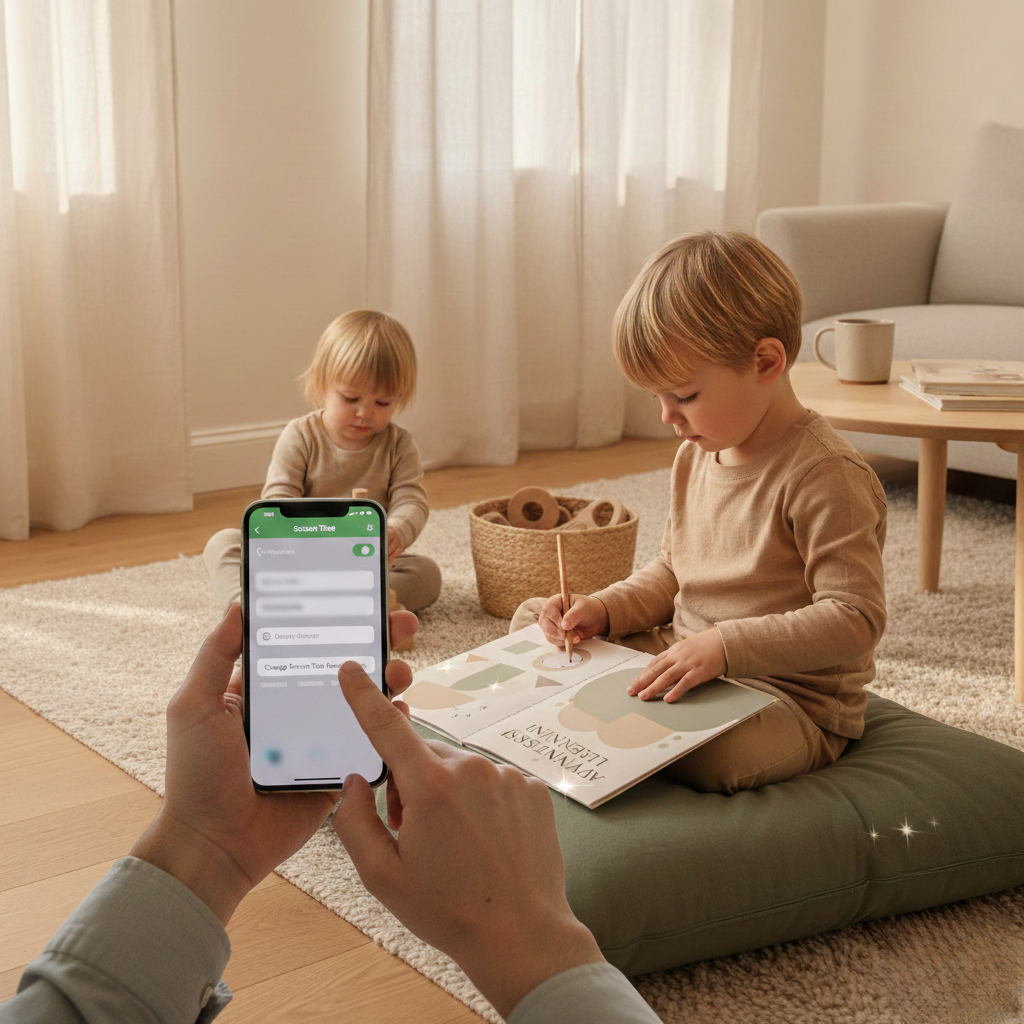
Changing a screen time passcode is a technical step, not a moral statement. In intentionally screentime families, the passcode is a functional limit, not a condemnation. The procedure varies a bit by device and system version, but the underlying steps stay consistent. Here is how to change your screen time passcode.
1. Know Your Current Passcode
Make sure that you know your existing passcode. Devices ask for it prior to allowing you to make a new one, so test it out before initiating. If you can’t remember it precisely, verify any secure notes or password managers you use for family codes.
It’s smart to jot it down somewhere secret and safe just in case you need to change it later during a hectic period. Too many incorrect passcode attempts might temporarily lock changes or in more extreme cases necessitate a full reset. Always test the code before you adjust it!
2. Forgot Your Passcode
If you forgot the code, utilize your device’s native recovery. Almost all systems these days ask for your Apple ID or device credentials to reset the passcode without erasing settings. If recovery doesn’t work, you might need to reset your device, something that can wipe data and settings, so back up ahead of time.
Apple provides for this scenario with step-by-step instructions through every menu and warns explicitly about the possibility of data loss. This process is secure, not convenient, so be prepared for some additional hoops to prove who you are.
3. Use Your Apple ID
Apple ID integration makes it easier for most folks. If your Apple ID is associated with the device, then use it when it asks you to reset or change your screen time passcode. Always protect your Apple ID information, not only for passcode modifications but for your whole device’s security.
Just follow the prompts. It will guide you through authentication, then allow you to establish a new passcode. Of course, never choose a passcode that your kids could easily guess.
4. For a Child’s Device
If you’re managing a child’s device, establish a distinct screen time passcode that is exclusive to you. This is important for keeping usage boundaries in place, particularly when on-the-go during travel or after school. Teach your child the purpose of the passcode: it is about structure, not secrecy.
Modify as your child’s needs evolve. Parental controls are customized with hours, app limits, and downtime. Family Sharing may require extra steps; check if the child account is managed separately.
These controls work best when they feel consistent rather than reactive. Tiny Thinks™ is just for these moments when the screen is down, but you still need the kid to calm down and tune in on their own.
Our Free Calm Pack is for quick switches, providing hands-on, quiet-thinking activities kids dive back into eagerly. For more hard structure, the age-based workbooks develop focus, order, and quiet starting. No hype, no pressure, just quiet, reliable defaults when you need control to return.
Troubleshooting Passcode Issues
Switching or handling your Screen Time passcode frequently turns into a sore spot for parents in real-life instances, post-school, around meal times, or as you’re getting ready for bed. Easy technical oversights, device-specific quirks, and forgotten passcodes can all derail a parent’s peace plan for orderly control.
Here’s a straightforward, rule-first method to troubleshoot the most common issues facing passcode work.
Passcode Not Working
A lot of passcode problems are caused by mistakes. Recheck for typos or transposed numbers. A few parents have gotten around forgetting their passcode by trying 0000, 0123, or 1234. In rare instances, these defaults do work, but most devices lock you out after a few incorrect attempts, sometimes for an hour.
If you’re continually locked out, reboot your device. This breaks up transient software bugs that can interfere with passcode entry. If the issue persists after a few attempts, try a device reset.
For iPhone owners, one parent discovered that connecting it to iTunes, turning off Find My iPhone, and restoring it allows you to reset the passcode—albeit as a last resort. If none of these methods work, get in touch with Apple Support. Others say only tech support fixes stubborn passcode failures, particularly with Family Sharing on.
Apple ID Verification Fails
Apple ID verification is another frequent sticking point. First, make sure your Apple ID credentials are input correctly. Even the tiniest typo, say an extra space or a capital letter, will stymie confirmation. A flaky connection will disrupt the process, so switch to a solid Wi-Fi network when you can.
If it continues to fail, attempt to reset your Apple ID password. Sometimes all it takes is signing out and back into your Apple account on the device. Just double check your Apple ID account status is active.
If all else fails, record any error messages for Apple Support. This makes troubleshooting much quicker.
Changes Not Saving
It’s easy to forget a missed step in the passcode change process. Make sure you entered, confirmed, and saved the new passcode. If changes still don’t save, restart your device to refresh its settings. Look for software updates, as a buggy OS occasionally prevents new alterations from activating.
Document failed save attempts, the precise steps, and any error messages. If you’re using Family Sharing, keep in mind that a child’s Screen Time passcode can only be changed from the organizer’s device.
A few parents fixed saving problems by going directly to Settings, selecting Screen Time, choosing their child’s account, and changing the passcode there.
Tiny Thinks™ is screen-agnostic. Our attitude is scientific, not judgmental. Screens are a tool. When they work, they work. When they don’t or you need a nice, screen-free alternative, Tiny Thinks™ has got your back with its Free Calm Pack to use for after school decompression, travel, or mealtime transition.
Our age-based Workbooks provide a trusted next step in developing focus and regulation, allowing kids to start and finish solo — no parent policing needed.
The Psychology of Passcodes
Passcodes are not just a jumble of digits or characters guarding a gadget. They mirror memory, habit, and even subtle emotional triggers. For parents, they’re a practical tool that is neither a barrier nor a value judgment and generates predictability around screens.
This psychology of passcodes explains why so many codes are easy to guess and why changing the screen time passcode becomes a regular chore. Humans are not wired to spontaneously and intuitively generate strong passcodes, and the same mistakes, the same weak password archetypes, recur across cultures and age groups.
- Using birthdays, anniversaries, or children’s names
- Choosing short, repetitive patterns (like 1111 or 1234)
- Relying on familiar keyboard sequences (like qwerty)
- Reusing old passcodes or simple variations
- Setting new codes during moments of distraction or stress
Creating Memorable Codes
The psychology of passcodes. The strain lies between complexity and convenience. Longer codes are safer these days, but the more intricate, the simpler they become to lose track of. Most adults attempt to memorize passcodes, with 54% reporting this behavior, but this results in resets or reverting to insecure patterns.
Mnemonic devices are the answer. For example, constructing a passcode out of a narrative, such as “1stbyr, favyr, city,” gives you a mental hook. Some parents use significant, non-obvious dates, like the date of a childhood accomplishment, or a phrase that only they would recall, then translate it into a passcode.
Steer clear of typical patterns. Even when incorporating personal information, mix up the order or include random digits. Longer passcodes, well past the antiquated 8 character recommendation, currently provide the optimal tradeoff between protection and memorability.
Avoiding Common Mistakes
Most people tend to fall into predictable passcode pitfalls. Birthdays or names are easy choices, but they are the first guesses for any intruder. Simple sequences, like “123456,” are still surprisingly prevalent. Even after breach news, more than half (52%) don’t change their passwords.
Even though 91% recognize that it’s risky, reusing the same or similar passcodes across devices is common because convenience beats security. Compelled resets every 90 days may seem safe, but they generally drive folks toward even weaker strings. Surprisingly, almost a quarter reset passwords every month because they forget them.
Password managers help organize and strengthen codes, eliminating the need to memorize every last one. Having the discipline to follow security advice in the moment instead of defaulting to old habits mitigates risk.
The Parent-Child Dynamic

Passcodes add an additional layer of complexity when dealing with a family. Parents don’t want power struggles and secrets. Transparent discussions about why passcodes are around—structured, not punitive—dampens opposition.
Children ages 3 to 7 benefit from clear routines: “This is how we keep our brains calm and screens in their place.” Getting kids in on the conversation, even allowing them to assist in picking out a code for communal devices, fosters trust.
For many families, these high-friction moments happen after school, during travel, or before dinner: after school, at dinner, during travel, or bedtime. Instead of simply locking a screen, parents can provide a soothing, screen-free replacement that rebuilds attention and regulation.
The Free Calm Pack is a beginning—straightforward, scaffolded, and accessible for kids to implement on their own. For continuous support, age-specific Tiny Thinks™ Workbooks expand the system, providing families a dependable reset when necessary.
Advanced Passcode Management
Parents wrangling screen time with toddlers are dealing with genuine security issues when schedules are hectic and devices are everywhere. Advanced passcode management is more than picking a code and praying you don’t forget it. Modern devices have a variety of utilities and policies to secure kids’ digital entryways, avoid inadvertent lockouts, and prevent screen binging.
Most parents are simply trying to avoid repeated arguments and last-minute decisions.
|
Technique |
Description |
Security Level |
Use Case Example |
|---|---|---|---|
|
Password Manager |
Stores and organizes multiple passcodes securely |
High |
Multiple devices, family management |
|
Two-Factor Authentication |
Adds verification step beyond passcode (e.g., SMS, app code) |
Very High |
Parental devices, sensitive settings |
|
Face/Touch ID |
Uses biometric authentication for passcode changes |
High |
Quick access, frequent passcode updates |
|
Regular Updates |
Rotates passcodes at set intervals to maintain security |
Moderate |
Seasonal changes, after sharing devices |
Using a password manager is a convenient, organized means of saving and accessing numerous passcodes. They provide encrypted storage, cross-device syncing, and can be configured for parents managing multiple devices or family sharing plans.
Two-factor authentication, which is pretty standard on most platforms by now, would prevent an attacker from modifying Screen Time settings even if they had a passcode. Periodic passcode review and refresh, particularly when handing off devices or shifting routines, keeps the system robust and adaptive.
Where applicable, unlocking Face ID or Touch ID for authentication introduces an additional layer against inadvertent resets or malicious changes, rendering the method child-safe without additional friction.
Across Different iOS Versions
Passcode management gets more advanced with every iOS update. Older versions may not include two-factor options or advanced recovery features, which will necessitate more manual steps. New enhancements bring us Face ID and easy resets via device settings.
You should tweak your approach depending on your iOS version and test compatibility with family devices or older models. Other families maintain a small written backup in a hidden spot as a fallback for these forgotten codes, particularly if they are using several devices.
With Family Sharing
While family sharing adds convenience, it adds complexity. Each member of your family has their own Screen Time passcode enabling individualized boundaries and privacy. Parents can view and control usage patterns in a central dashboard.
Talking about passcode policies is important, particularly as older kids begin using devices solo. Discussing expectations upfront prevents surprises or accidental lockouts. Sometimes, device settings have to be adjusted if roles in the family shift, like when a child outgrows some of the restrictions.
Third-Party App Conflicts
Not all apps play nice with device-level passcode controls. Occasionally, third-party utilities will try to circumvent system restrictions, leading to surprising lockouts or conflicts.
Here’s a table outlining common conflicts and solutions:
|
Conflict Example |
Solution |
|---|---|
|
App disables Screen Time |
Update app or use verified alternatives |
|
App interferes with Face/Touch ID |
Uninstall or reset authentication |
|
Utility causes data loss |
Backup data before using third-party tools |
If you need to deploy a recovery utility to reset a forgotten passcode, tread carefully. More standard Apple-approved ways are safer.
Utilize third-party utilities as a last resort, and backup, backup, backup to avoid losing data. For the majority of families, strong device settings paired with organized, screen-free alternatives render these advanced measures infrequent.
Tiny Thinks™ is regulation-first and screen-free by design. It’s a dependable, cool-headed option when you want to soothe your kiddo, shift away from screens, or encourage focus and original thought.
The Free Calm Pack provides a simple method for testing structured, screen-free regulation. Age-specific Workbooks enrich the advantages for day-to-day application.
Proactive Security Measures

Any parent will tell you that when a device is unsecured, a child’s curiosity can do more than just open extra apps. It can quickly undo routines you’ve laboriously constructed. Protecting your phone with a solid, frequently changed passcode is the easiest way to maintain your borders.
Utilize an alphanumeric passcode rather than numbers only. It adds a few seconds more, but it delays anyone brute-forcing their way in. A secure password manager can be a lifesaver here, creating random passcodes for every account and every device. If one password leaks, the others remain safe. This lowers risk in a world where kids are increasingly device-savvy.
Device hardening is the essence of proactive protection. That implies checking your device’s settings, turning off functions you aren’t using and ditching outdated apps that leave extra doorways. Wherever you can, restrict app permissions, disable location tracking, and keep your OS updated.
Updates frequently seal holes hackers use to sneak in. It’s elementary, but neglected—especially when the heat is on. Secure file storage in a trusted third-party cloud provider adds a second layer of defense. School forms, family photos, private notes—these are all less vulnerable should the device itself be lost or compromised.
Routine is your friend in device security. Make it a habit to update your passcodes once a month, or whenever your child’s schedules shift. This habit doesn’t simply keep things fresh; it catches gaps before they become problems.
Finally, if you have a shared family device, put daily time limits on crucial apps. It’s not about shutting things down due to fear. It’s about avoiding accidental purchases, unsupervised surfing, or the autoplay vortex that has kids irritable and unfocused.
Whenever your kid needs to use the device for something, turn on Guided Access. It keeps them contained within a single app, preventing stray taps or roving fingers. This feature is convenient for traveling, waiting rooms, or those days when you just need to keep it easy.
Security isn’t just about settings and software. It’s about practical security. Watch out for “shoulder surfing,” someone scoping your child’s passcode as they use a device in public, or device theft in a crush of people.
Raising them to be conscious of their environment and approach devices calmly is about cultivating lifelong digital habits. Parents often look for something to replace the screen rather than just removing it. After school, at a screen shift, or waiting for dinner, these are high-friction periods in which rapid content tugs focus from control.
Rather than counting on digital locks, you can grab a Free Calm Pack or age-based Tiny Thinks™ Workbook. They were intended as hands-on, low-arousal instruments for self-directed concentration and early cognitive abilities. Kids calm down quicker, come back on their own terms, and the device can remain out of arms reach, not as discipline, just as a transition to calm, logical thought.
Conclusion
Changing a screen time passcode is seldom a purely technical maneuver. For the majority of families, it’s a means to reestablish order and get peace back when those old limits cease to function. The act is simple, but the effect runs deeper. Fresh restrictions tend to recalibrate habits and break a cycle of bargaining or constant asking. Change screen time passcode. When kids trust the system, they learn to settle and focus. Passcode issues are aggravating when they happen, but with straightforward instructions and a calm mindset, these problems typically find a speedy solution.
Trustworthy digital boundaries enable the type of autonomous, concentrated play that gets families through stressful moments with less strife.
Frequently Asked Questions
What is a Screen Time passcode?
A Screen Time passcode is a 4-digit code that safeguards your device’s Screen Time configurations. It assists with managing app time and content restrictions while keeping your information and preferences safe.
Why should I change my Screen Time passcode?
Changing your passcode regularly enhances security. It keeps your device’s content and usage settings secure, particularly if you believe someone else knows your passcode.
How do I change my Screen Time passcode?
Navigate to your device’s Settings, then Screen Time, where you’ll find the option to ‘Change Screen Time Passcode.’ Then, follow the prompts to create a new passcode.
What should I do if I forgot my Screen Time passcode?
If you forget your passcode, use your device account credentials or recovery options offered by your device. Otherwise, you might have to factory reset your device or reach out to support.
Can I use letters or symbols in my Screen Time passcode?
Most devices accept only a numeric passcode for Screen Time. Check your device’s settings for options, as some newer devices provide more flexibility.
How often should I update my Screen Time passcode?
You should change your passcode every few months or right away if you suspect it may have been hijacked. This makes your data and configurations more secure.
Does changing my Screen Time passcode affect my data?
No, changing your Screen Time passcode does not impact your data, app settings, or usage. It’s just the passcode that gets updated for security.