Key Takeaways
- The default YouTube Kids settings and algorithms can’t catch everything, so parents should remain actively involved in what their child watches.
- By customizing content levels, manually approving videos, and disabling search features, you can help make a safer and more age-appropriate viewing experience for every child.
- By blocking unwanted channels and regularly reviewing approved and blocked lists, families can stay ahead of new risks and changing interests.
- Outside tools like Google Family Link and curated playlists add another layer of safety and give parents more control over screen time and app usage.
- When we watch together, have open conversations, and establish clear family guidelines, we build trust and equip kids with the habits needed to navigate the digital landscape safely and responsibly.
- As kids grow, slowly giving them more freedom online with ongoing coaching and check-ins helps them become safe digital citizens.
To restrict YouTube Kids, parents can configure parental controls, set screen time limits, and block content within the app.
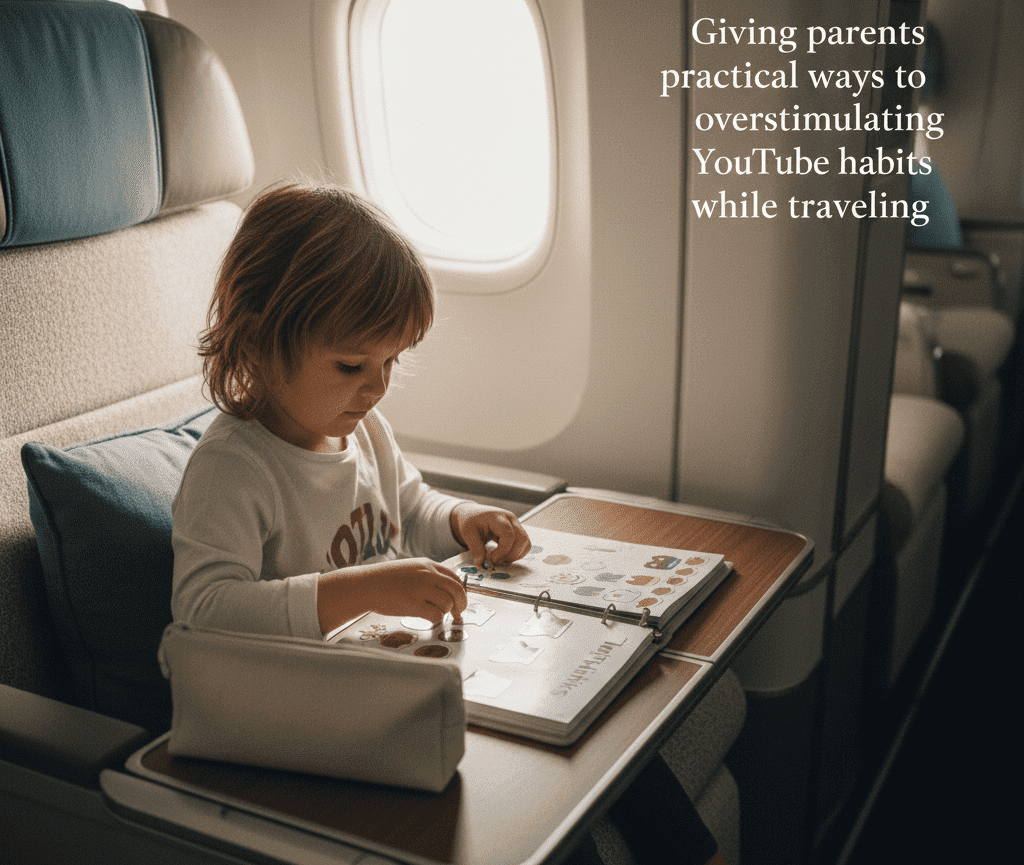
I get it, most families realize that kids still want more screen time, particularly in those really hectic moments like dinner or travel.
Knowing how to gently transition kids into calm, screen-free routines is essential for developing attention and reducing overstimulation.
The following chapters provide actionable guidance and tangible solutions for daily family life.
How to restrict YouTube Kids is something most parents search for when they want calmer, safer viewing for their child, especially during busy daily moments.
Why Default Settings Fail
While default settings on YouTube Kids tout ease and security, these defaults frequently do not meet families’ needs. It’s easy to assume the defaults are all a parent needs. Parents soon learn these defaults are meant for a general user, not a specific child. The result is gaps in safety, inconsistent filtering, and a system that can feel opaque and difficult to control, especially when time and energy are limited.
Learning how to restrict YouTube Kids properly helps close these gaps and gives parents back a sense of control.
Algorithmic Gaps
YouTube’s recommendation algorithms are designed to maximize engagement, not child safety. Videos are pushed by watch time, by clicks, by trends, not by what’s developmentally appropriate. There are misclassifications, cartoons seriously laced with mature humor, advertisements masquerading as entertainment, or ambush loud videos that might sneak by.
The truth is that no algorithm can substitute for the thoughtful supervision a parent contributes. Using a supervised account allows parents to actively manage their child’s YouTube activity, ensuring they are not exposed to inappropriate content. Active, ongoing monitoring through parental settings is the only way to close these gaps before they affect a child’s mood or behavior.
This is why understanding how to restrict YouTube Kids becomes essential for protecting a child’s attention and nervous system.
Algorithmic suggestions can push kids to increasingly arousing, quick-cut content that has them overstimulated, dysregulated, and yearning for just a bit more screen time. Active, ongoing monitoring is the only way to snatch these gaps before they affect a child’s mood or behavior.
Content Loopholes
Filters rely solely on the labels and tags videos receive, which are frequently assigned by users rather than specialists. Certain designers exploit fuzzy or deceptive tags to tap greater audiences, so a video tagged as “educational” may really be frenetic, noisy, or packed with unrelated commercials.
Parents might see inappropriate lyrics songs or fast-cut animations or unboxing videos ad infinitum, popping up even with controls. You have to check your kid’s feed frequently. New stuff always pushes the old stuff away. Block and report any worrisome videos, but understand this is a reactionary measure.
Things are always going to slip by, so monitoring needs to be continuous. This work can seem exhausting, but it’s the sole means of advancing beyond the default settings of things. Kids require parameters, and parents alone can detect the nuanced changes that indicate a video’s not appropriate for their household.
Parents who know how to restrict YouTube Kids can stay ahead of these loopholes and prevent overstimulating content from slipping in.
The One-Size Problem
Default settings are constructed for the norm, not for your child’s age, sensitivities, or needs. A 4-year-old and a 7-year-old each have different limits when it comes to noise, story complexity, or emotional content, but defaults seldom distinguish. Some kids get freaked out by quick cuts or loud music, while others obsess over frightening plots or themes. To enhance the YouTube Kids experience, parents can utilize parental control apps to tailor content according to their child’s preferences.
Parents are most familiar with their child, and personalizing settings where available provides an opportunity to create a safer, more peaceful setting. Even so, the sheer quantity of choices, unintuitive menus, and unclear directions render customizing settings a pain, particularly for non-technical parents.
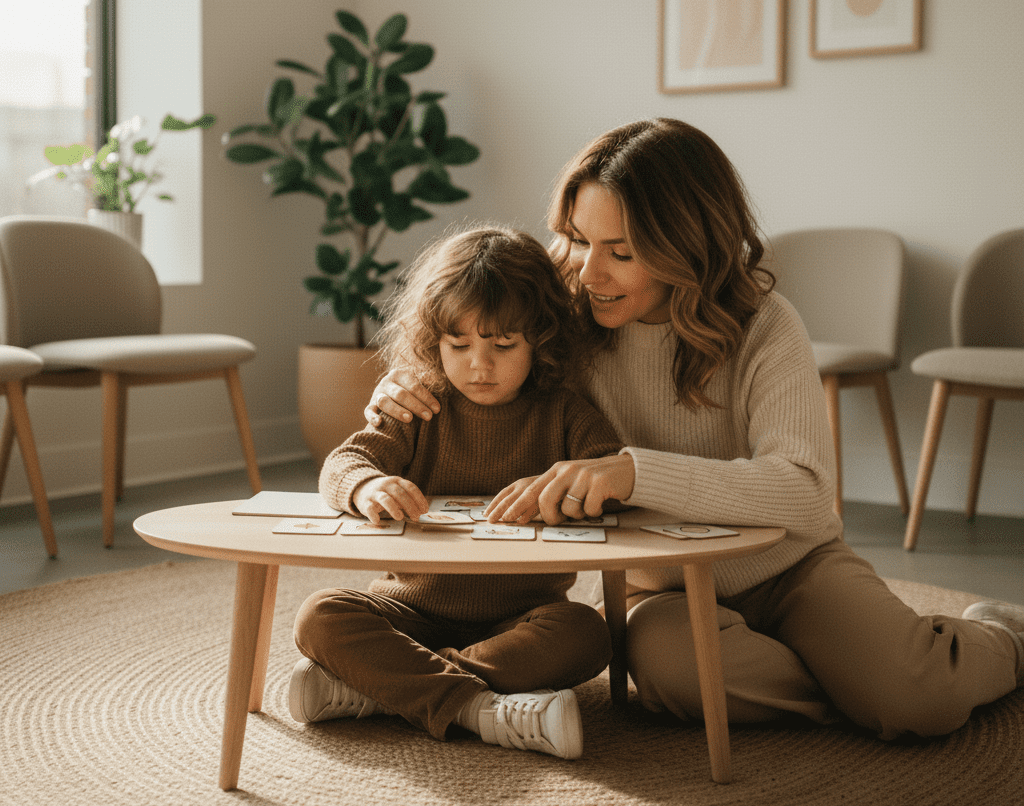
This is where tons of parents throw in the towel and settle for the defaults, even when they feel something’s off. For families craving serene, scheduled days and clear-headed concentration, screen-free options such as Tiny Thinks™ provide a saving grace.
Tiny Thinks™ Workbooks and the Free Calm Pack offer easy, curated activities for those real-life moments, mealtime, travel, bedtime that work on the spot, wherever you’re at. Kids instinctively default themselves into calm concentration, providing moms and dads with assurance and comfort, not the anxiety of scrolling through infinite device menus.
How to Restrict YouTube Kids
Learning how to restrict YouTube Kids begins with simple adjustments that instantly make viewing calmer and more age-appropriate.
YouTube Kids now offers ways to customize your kid’s experience to promote calmer moments and safer viewing, including for 3 to 7 year olds who may be overstimulated by rapid-fire content. Limiting access is not a form of punishment; it’s a guiding hand toward healthier habits and nervous system regulation.
Here’s how to put real boundaries around YouTube Kids, so your kid’s digital world is contained and less likely to chip away at attention or peace.
1. Select Content Level
First, make individual profiles for every child. YouTube Kids offers preset content levels: “Preschool” (under 4 years), “Younger” (ages 5 to 8), and “Older” (ages 9 and up). Each level filters accessible videos, with ‘Preschool’ allowing only very basic, slow-paced content and no search as default.
Tweak these settings periodically as your kids’ tastes and capabilities mature. For younger kids, we typically set them a year or two under their real age, as this limits their access to rapid, noisy, or aggressive videos.
Be explicit with your child about why you’re selecting a particular level. You could tell them, ‘These videos are relaxing and straightforward, so your mind can take a break.’ It’s important to talk openly about the new rules so your little one understands that limitations exist to keep them safe and controlled.
2. Approve Content Yourself
For more control, turn on ‘Approved Content Only’ mode. There, you select each channel, video, or collection your child can view. This mode takes away all external recommendations and turns off search, so their home screen only shows the approved list.
Periodically update this list in accordance with your child’s evolving interests or following a watch history purge to reset recommendations. Have your kid propose videos you can check out. This keeps them engaged and respected.
When you approve their decisions, they feel heard and validated, which reinforces the boundary instead of making screens more alluring.
3. Disable Search Function
Disabling the search bar means your child can only view preselected, parent-approved content. It’s a critical step toward avoiding unintended access to not safe for work and overly stimulating videos.
Coach your kid to only browse what’s on their home screen and emphasize that new shows require your okay. Control what they view. If you see interest in a new subject, talk it over together before introducing related videos.
When supervision is routine, kids come to anticipate it and do not test as much.
4. Set a Custom Passcode
Create a custom passcode to lock down settings and content. This prevents kids from altering their own restrictions or adding new videos. Change the passcode regularly.
Make the passcode a lesson. Tell them it’s there to protect everyone on the web, just like the rules at the park. Make respect for these digital boundaries part of your family’s routine.
5. Use the Timer
Time limits for daily viewing right in the app. The timer will pause playback once the limit is reached, avoiding endless scrolling or breakdowns when it’s time to turn it off. Discuss with your child why screen time is restricted.
Coolly explain that brains need downtime and other things make them feel good. Timers promote self-control. Kids start to anticipate when screens shut down, minimizing battle.
Most kids, in most families, shift more easily to quiet, screen-free activities after the timer ends, particularly if you lure them with a soothing option like Tiny Thinks™ Free Calm Pack or an easy workbook page for concentrated, independent play.
Tiny Thinks™ offers you a consistent, screen-free tether, particularly in frazzled moments like post-school or bedtime. Kids select their own activity, complete a page, and descend into that very still focus that screens promise but rarely provide.
Block Unwanted Channels

YouTube Kids provides a number of features for parents to control their child’s experience, but not even robust filters are 100% effective. Blocking unwanted channels minimizes exposure to inappropriate or overstimulating content and it can help curb screen time, steer kids toward healthier habits, and foster a more peaceful digital landscape.
For countless families, blocking channels with violence, hate speech, or explicit content is a fundamental piece in creating a protected environment online. It’s practical: you can use built-in parental controls, device-level restrictions, or third-party apps to tailor the experience to your child’s needs.
- Use the YouTube Kids app’s block feature to remove specific channels or videos.
- Go into parental controls on your console and put content restrictions.
- Review and update the blocked channels list regularly.
- Block Unwanted Channels: Report inappropriate content to YouTube so it can be reviewed or removed.
- Teach your kids to inform you if anything makes them uncomfortable.
One of the most effective parts of how to restrict YouTube Kids is by consistently blocking channels that trigger overstimulation or unsafe themes.
On the Home Screen
The home screen is where most kids begin, and that’s where sneaky channels can easily sneak in. Customizing the home screen requires a couple of steps. In the app, you can tap and hold on a channel icon, then choose ‘Block this channel.’ This instantly conceals that material from your child’s perspective.
Blocking channels that have proven to be inappropriate or overstimulating is essential. If a channel continually dishes up loud, fast, or aggressive videos, block it. This minimizes the risk of your child encountering something that jolts their nervous system or breaks their concentration.
Insist your kid stay with channels you’ve approved. For younger children, it’s good to co-view and model how to select calm, educational choices. As your child matures, their preferences change, and so should the channel blend they are exposed to.
From the Watch Page
Blocking from the watch page is a quick means to react to unwanted videos. If your kid clicks something suspicious, simply pause the video, tap the three dots, and choose ‘Block’. This prevents similar content from being recommended in the future.
Fast responses are key when your kid discovers a clip with foul-mouthed or mature content. Some parents use this moment to reinforce reporting: explain how flagging bad content helps keep the platform safer for all kids. Show your kid what to watch for violence, bullying, or anything that doesn’t feel right.
That’s where teaching your kid to assert themselves develops digital resilience. If a video unsettles them, remind them to report to you immediately. Open conversations help kids feel safer and more in control, not more vulnerable.
Review Blocked Content
It’s convenient to block and forget. Periodic review is crucial. Check the blocked list every few weeks to ensure it still reflects your preferences. As new channels emerge or as your kid’s interests evolve, you may have to add or remove choices.
Explain to your kid why you block channels. It’s not just boundaries; it’s an opportunity to impart values and safe behaviors. Flush the list with whatever you uncover together. Sometimes a channel gets better, or your child just grows out of certain types of content. Get the chat going.
Open dialogue creates trust. Kids who understand the reasons will be more apt to voice concerns and make safer choices online. When families discuss digital boundaries, children learn to recognize red flags and seek assistance.
Tiny Thinks™ Workbooks and the Free Calm Pack are screen-free ways to support these habits. They assist kids in managing, directing, and developing foundational cognitive skills beyond the vortex of digital media.
For families seeking to swap out frazzled screen moments for peaceful hands-on ones, these resources provide a wonderful, gentle, guided alternative that really does the trick at the dinner table, in the car, or at bedtime wind-down.
Beyond The App Itself
Restricting YouTube Kids goes beyond the app itself. For most parents, the challenge is much bigger. Screen time infiltrates every nook and cranny of family life, and digital safety spans every device. Depending on one platform’s controls can provide a false sense of security, particularly considering how rapidly platforms and kids each evolve.
A more holistic approach means looking beyond the app itself by using tools like Family Link, framing habits around digital citizenship, and regularly checking every setting. It’s about regulation first, not judgment. Providing screen-free options is about bringing back peaceful moments, not pointing fingers at screens.
A big part of how to restrict YouTube Kids is recognizing that true safety happens across devices, routines, and daily habits
The Family Link Advantage
Google Family Link acts really as a tether to the real world for families navigating YouTube Kids. It ties in all devices, not just one, so parents can set daily screen time limits in minutes, see which apps are taking up the most attention, and even block YouTube Kids completely during certain times.
This is particularly beneficial for multi-kid households or shared tablets, where a single app lock does not cut it. It’s useful to convey to your child that Family Link isn’t about punishment. It’s a device that keeps everyone safe, like a seatbelt.
Revisit these settings regularly as your child’s needs evolve. What works for a 4 year old can annoy a 6 yea old seeking independence. Including your child in these modifications can foster trust and educate them about boundaries and security. Still, even the best tech tool is not flawless. Screens occasionally sneak in, which is why routine and dialogue count.
Creating Safe Playlists
Hand-picking playlists of approved videos lets your child feel empowered within defined boundaries. Instead of infinite algorithmic scroll, they see just what you’ve selected. Having your child participate in selecting these videos can make them feel invested and cuts down on ‘just one more’ battles.
It’s crucial you keep these playlists fresh. A stale list is what usually sends kids back to the main feed, where content changes quickly and isn’t always age-appropriate. Spend time discussing what’s on the playlist.
Ask simple questions: “What did you like about that video? Did something catch you off guard?” These conversations help kids actually process what they’re watching instead of mindlessly digesting quick hits of entertainment. Studies reveal that most online time for little kids is entertainment, not education, so carving out room for contemplation, even in petite quantities, encourages more profound rumination.
Building moments of calm play is a powerful complement to how to restrict YouTube Kids, because it gives children a soothing rhythm to return to instead of fast-cut videos.
Verifying Your Settings
Settings can drift or reset with updates, so regular checks are essential. Parental controls glitch sometimes or don’t wrap around new features, leaving gaps you didn’t anticipate. Try out the limits by using the app as your child would—did anything leak through?
Look at activity logs to see what your kid’s watching and for how long. Be curious about new features that YouTube Kids or Family Link introduce as they can provide additional control on a more granular level. Of course, no tool is foolproof and continued vigilance is part of digital parenting.
If you need to get off screens altogether, Tiny Thinks™ provides scaffolded, screen-free activities kids want to do, including the Free Calm Pack for instant regulation in transitions and age-specific Workbooks for deep stretches of silent focus.
These aren’t worksheets; they’re meant to simulate the slow, reliable input that signals kids to settle, focus, and think. For most families, this is where genuine peace and improved habits start.
The Human Element of Safety
Technology can screen and block and restrict, but it can’t replace a parent’s presence. Even the best settings on YouTube Kids or elsewhere can’t ensure a child’s experience is safe or developmentally healthy online. Most children, especially 3 to 7 years old, are still mastering attention, reason, and critical thinking.
They might click recommended clips blindly not knowing where it will take them, or have difficulty differentiating truth from lies, or even fall upon shocking material. Some kids encounter strangers on the web. One out of five U.S. Teens says that’s happened, but only 25 percent inform their parents.
It’s Mom and Dad that are the real safety net. Regulation starts with sane, consistent adult leadership, not robotic commandos. Screen-free alternatives like Tiny Thinks™ are made for these times, when parents want engaging, hands-on play that calms the nervous system and develops thinking abilities.
Watch Together
- Shared viewing builds trust and strengthens family bonds.
- Adults can model healthy screen habits and discussion.
- You observe what your child is attracted to and step in early if something feels wrong.
- When an adult is nearby, kids are less likely to see junk.
- Viewing together creates subtle teachable moments. These moments describe what’s real, what’s pretend, and what’s safe to click.
Shared viewing isn’t just about policing; it’s an opportunity to engage your child to discuss what they observe. Ask simple questions: “What did you like about that video?” or “How do you think that character felt?
This opens up your child to sharing feelings and thoughts, and it’s an organic way to sow the seeds of compassion, caution, and skepticism. The side effect is that children feel seen, and you build a routine of connection that lasts far beyond the screen.
Talk Openly
They need to know it’s safe to talk about anything they see online. Some stuff is latent, or kids won’t tell about weird or disturbing experiences. Encourage candid questions, even if they’re silly or awkward.
Inquire about what they’ve been viewing lately or if anything perplexed, delighted, or frightened them. Make online safety talks as commonplace as tooth brushing. Remind them that if something ever feels off, like a video with familiar characters in bizarre scenarios or some random stranger trying to talk, they should talk to you.
Reporting isn’t tattling; it’s a means of looking out for themselves and others. Over time, these small talks grow trust and help your child develop critical thinking about what they watch.
Establish Rules
Establish straightforward limits on when and what your child may watch. Some families say no screens during dinner, before bed, or at school. By involving your child in these decisions, “What do you think is a fair amount of screen time?” they feel ownership and begin to develop self-regulation.
Rules must evolve as your child matures. Go over them together every few months. If rules are broken, remain cool but firm about the consequence. Explain why: “We have this rule because some videos aren’t safe for kids.
This inculcates responsibility and helps kids make safety their own. Tiny Thinks™ provides families a solution for these moments, particularly when screen time is alluring, but you desire peaceful, engaged play.
The Free Calm Pack is a soft landing, and age-specific Tiny Thinks™ Workbooks provide actual, screen-free organization for dinnertime, travel, bedtime, or after-school control.
Montessori-style quiet activities naturally support how to restrict YouTube Kids, giving families peaceful routines that reduce screen dependence over time.
When Your Child Outgrows Kids
Parents exploring how to restrict YouTube Kids for older children eventually shift toward supervised accounts and gradual independence.
Kids outgrow YouTube Kids at various ages, typically between five and thirteen. Some begin to desire fresh material, such as music videos or gaming streams, as early as eight or nine, while others remain captivated by kids’ selections through much of their teens. Maturity, not age, is the real marker: Can your child spot inappropriate content? Are they prepared for greater freedom?
We parents typically consider these questions prior to switching to wider YouTube availability. It’s a journey, not a flip of the switch. For families who want to sustain calm, focus, and regulation, slow is best.
Supervised Experiences
Begin with a supervised YouTube account. That is, establish a general YouTube account (not YouTube Kids) while maintaining monitoring. Decide together which kinds of videos, such as music, crafts, or age-appropriate science, are permitted. Explain why some genres, like pranks or violent gaming, may not be appropriate yet.
Ask your child to share with you what they are watching. This openness fosters trust and maintains communication. Check in often, particularly during those first few weeks. If your kid is responsible, selecting safe stuff, and inquiring when uncertain, you can back off a bit.
If not, reset boundaries and refresh guidelines together. Supervision is not eternal, but it does provide a nice buffer zone from totally forbidding to totally permissive.
Strengthening early logic skills is a quiet but important part of how to restrict YouTube Kids, helping children build the thinking abilities they need to navigate online content safely.
Restricted Mode
|
Feature |
Description |
Limitation |
Alternative Safety Measures |
|---|---|---|---|
|
Filters mature content |
Hides flagged or reported inappropriate videos |
Not foolproof; some content slips through |
Parental supervision, time limits |
|
Requires login |
Needs a Google account to activate and manage |
Child may learn to disable |
Discuss rules, use device controls |
|
Works on browsers, some apps |
Applies to most browsers and YouTube app versions |
May not work on all devices |
Use device-level filters |
|
Not a substitute for parenting |
Tool to support, not replace, active involvement |
Over-reliance can create false sense of security |
Ongoing discussion, co-viewing |
Educate your kid on the intention behind restricted mode: it’s for protection, not punishment. Teach them to see if it’s on. Explain to them that no filter is good enough; some naughty stuff can get through.
Remind them that restricted mode is only one aspect of online safety. Time caps, device configurations, and candid dialogue all matter as well.
Gradual Freedom
As your child ages, begin removing rules incrementally. Explain each change: “You’ve shown responsibility, so we’ll allow more freedom. I’ll still check in.” This aids them to comprehend the connection between trust and autonomy.
Push your kid to make good choices. Question them about what they would do if they came across something disturbing or perplexing. Remain open for inquiries. Monitor what they watch and intervene if necessary.
Incremental liberty educates young ones self-control. It fuels their critical thinking, problem solving, and healthy screen habits.
When structure is required at mealtime, while traveling, or when overstimulated, screen-free alternatives such as Tiny Thinks™ Workbooks and the Free Calm Pack deliver mild, immersive activities that bring back attention and peace, frequently more dependably than any filter or limitation.
These workbooks are designed for real life: independent play, quiet moments, and family time, no screens required.
Conclusion
It’s useful to configure controls on YouTube Kids, but in reality, safety is beyond just clicking a switch. Even with every filter engaged, the universe within the app shifts rapidly, and no system can catch it all. Kids’ needs evolve as they age, and what’s right for a four-year-old is rarely good for a seven-year-old. Building trust, discussing content openly, and helping direct your child’s decisions are just as important as technical controls.
For families seeking calmer routines and fewer tantrums, screen-free solutions such as Tiny Thinks™ calm packs provide practical engagement and a respite from rapid digital din. Ultimately, realistic limits, open dialogue, and trustworthy offline alternatives are the most effective in combination, particularly as your kid’s cognitive abilities and autonomy continue to advance.
Frequently Asked Questions
What is YouTube Kids and why should I restrict it?
YouTube Kids is a curated app for children to watch videos more safely. By using parental control apps to limit access, parents can shield kids from inappropriate YouTube content and provide a safer YouTube Kids experience.
How can I set restrictions on YouTube Kids?
Launch the YouTube Kids app, navigate to Settings, and utilize parental controls to configure content levels, control screen time, and approve content. Be sure to set a passcode so no one can switch settings without your permission.
Can I block specific channels or videos in YouTube Kids?
Yes. Click on the three dots next to a video or channel and choose ‘Block’. This takes the junk out of your kid’s peeper! You can unblock them later in the parental settings.
Is YouTube Kids completely safe after setting restrictions?
Nothing’s foolproof. Restrictions mean it’s safer, but they might not catch every questionable video. Periodically check your child’s watch history and remain engaged with their online activity.
How do I manage YouTube Kids when my child is ready for regular YouTube?
So, when your kid ages out of YouTube Kids, transition to supervised accounts on regular YouTube. Activate restricted mode and keep an eye on them for a safer experience.
Are there additional tools to protect my child beyond YouTube Kids?
Yes. Utilize device-level parental controls, third-party applications, and safe search filters. Open dialogue with your child is crucial for continuous safety.
What should I do if I find inappropriate content on YouTube Kids?
Report inappropriate YouTube content in-app by tapping the three dots and choosing ‘Report’. This setting enhances the YouTube Kids experience and keeps your kid safer.